Monday, February 10, 2020

Resolve Common Installation Errors in QuickBooks Desktop

How to Resolve QuickBooks Installation Errors Like QuickBooks Error 3371. In addition, QuickBooks Error 12000 error Series like 12152, 12157, 12165, 12166 is also going to be resolved in other words, Lets Get Started ..

Resolve Installation Errors by Deleting Damaged File

Learn how to resolve installation errors by deleting damaged file in QuickBooks Desktop.
Installation of QuickBooks Desktop requires you to enter a license number and a product code to complete the validation process. If the encrypted file containing the information is damaged, QuickBooks will not open.
In those situations, deleting the entitlement file and re-entering your license and product information will help resolve the issue. We show you how.

Common errors that can be fixed by deleting entitlement file

The following are some issues and errors that can be resolved by deleting the entitlement file:
  • "Error: The validation code is incorrect or the service is temporarily unavailable when activating."
  • "Error 3371: Could not initialize license properties."
    • "Message: You cannot use Online Banking because QuickBooks is not registered."
  • "You must subscribe to accountant's copy file transfer service" appears after you subscribe and sync.
  • Error re-configuring your edition of QuickBooks.
  • Sync License Data Online is grayed out and unclickable.
  • Edit List link isn't in No Company Open

Delete the EntitlementDataStore.ecml file

  1. Close QuickBooks Desktop.
  2. Ensure that all QuickBooks processes are no longer running.
    • From the keyboard, press Ctrl+Shift+Esc. This opens the Task Manager. Windows 10: Select More Details to show Task Manager
    • Select the Processes
    • Sort the processes alphabetically by selecting the Process Name 
    • Search for all instances of EXE. And select and select End Task.
  3. Open the entitlement data folder for your operating system and version of QuickBooks.
    • On your keyboard, press Windows+R to open the Run
    • EnterC:\ProgramData\Intuit\Entitlement Client\v8 (or v6) and press Enter. (The folder location is the same for all QuickBooks Desktop and QuickBooks Desktop Enterprise versions.)
  4. Right-click the ecml file. And select Delete.
  5. Select Yes to confirm you want to delete the file.
  6. Open your company file and follow the instructions to register the application.
 Note: If you have QuickBooks Point of Sale installed, you will also need to re-register the program since it uses the same EntitlementDataStore.ecml file as QuickBooks Desktop.

12000 series of connectivity error codes

The 12000 series of Windows Internet connectivity errors are reported from the Microsoft Win32 Internet (WinInet) application programming interface (API). QuickBooks Desktop uses the WinInet API for easy access to standard Internet protocols, such as Gopher, FTP, and HTTP. These errors can appear in QuickBooks when downloading or receiving an update.
You can connect to Intuit servers for updates or transmissions.
You have an internet connection.
Here is a list of error codes:
  • 12001 through 12006: QuickBooks Desktop cannot complete this update. Make sure the Internet connection is working properly, and then try updating later to see if the problem has been resolved.
  • 12007: QuickBooks Desktop cannot find an IP address for a server. Make sure the Internet connection is working properly, and then try updating later to see if the problem has been resolved.
  • 12008 through 12164: QuickBooks Desktop cannot complete this update. Make sure the Internet connection is working properly, and then try updating later to see if the problem has been resolved. See Troubleshooting QuickBooks update errors.
  • 12052:The 12052 error is a nonspecific error message that indicates a connectivity issue is preventing QuickBooks from downloading updates.
You may have internet connection issue causing these errors.  Try sending in safe mode to resolve your error.

12057

  1. Close QuickBooks Desktop
  2. Open Internet Explorer.
  3. Choose Tools > Internet Options.
  4. Select the Advanced
  5. Scroll to the Security group and click to clear the checkbox for Check for server certificate revocation and Check for publishers' certificate revocation.
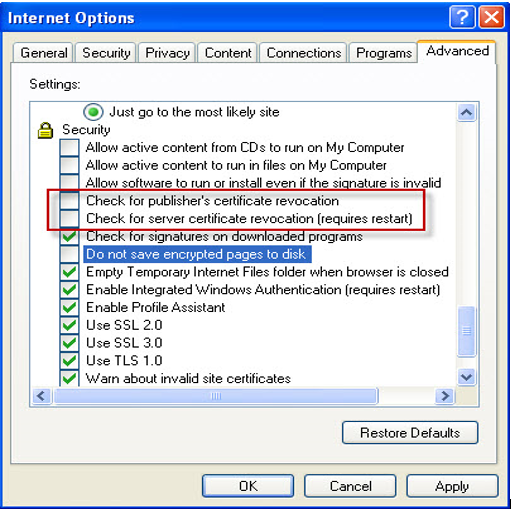
  6. Resolve Common Installation Errors in QuickBooks
  7. Close and reopen Internet Explorer.
  8. Minimize Internet Explorer.
  9. Open QuickBooks Desktop.
  10. Attempt payroll updates again.
Test the Internet connection outside of QuickBooks Desktop by opening your web browser and opening a website you don't normally visit (to make sure the page is not cached). If you cannot view this site, the issue is with the Internet connection outside of QuickBooks.
If you can view the website:
  1. In QuickBooks Desktop, choose Help > Internet Connection Setup.
  2. Select Use my computer's Internet connection settings to establish a connection when this application accesses the Internet. 
  3. Click Next.
  4. Select Advanced Connection Settings. 
  5. Click the Advanced 
  6. Scroll to the Security group, verify that Use SSL 2.0 and Use SSL 3.0 options are selected.
  7. Click Click Done.
  8. Verify the configuration of the Internet security and personal firewall settings.
Note: If you need assistance with this, contact your Internet service provider, or ISP.

12152 when downloading payroll updates: This error message can appear when the Internet Connection Settings in QuickBooks are not configured correctly.

Note: Before starting the configuration procedure that follows, make sure that you are connected to the Internet and can access a secure site by doing the following:
  1. Go to the Account Maintenance Pages, or
  2. Open an Internet browser and make sure you are connected.
  3. Go to a secure site such as wellsfargo.com, bankofamerica.com, or your own bank's web site. If the address bar shows https://, then it is a secure site.
Configure the Internet connection settings:
  1. In QuickBooks, choose Help > Internet Connection Setup.
  2. Select Use my computer's Internet connection settings to establish a connection when this application accesses the Internet. Click Next. If a second box does not open for the Internet settings:
    • Choose Start > Control Panel.
    • Double-click Internet Option.
  3. Click Advanced Connection Settings. Click the Advanced
  4. Scroll to the bottom of the Settings  Verify that the Use SSL 2.0 and Use SSL 3.0 options are selected.
  5. Click Click Done.
  6. Try the update again.
Make sure that QuickBooks Desktop is not being blocked, by a firewall.
Start the computer in Safe Mode and try to download payroll updates. Make sure the Internet connection is working properly, and then try updating later to see if the problem has been resolved.

12157

  1. Restore Advanced Settings:
    1. Outside QuickBooks Desktop, open IE browser.
    2. Go to Tools menu> Internet Options.
    3. Go to Advanced 
    4. Click Restore Advanced Settings 

12165

QuickBooks Desktop cannot reach your Internet proxy. Try updating later to see if the problem has been resolved. If that doesn't work, contact the person or company who set up your Internet connection to make sure that your proxy configuration is correct.

12166 through 12173

QuickBooks Desktop cannot complete this update. Make sure that your Internet connection is working properly, and then try updating later to see if the problem has been resolved.

After that, If the issue is still bothers you Call our Customer Care However, You can also Chat Live to the Customer Care Executive.

Print All General Journal Entries by Year in QuickBooks 2020

I've seen similar questions asked but the answers don't apply as 
they functions and steps listed do not exist on my version.  
I'm using QB 2016 Desktop version for Mac.

I want to print all transaction in the GENERAL JOURNAL ONLY, 
not every single transaction in all accounts, which is the only option 
I can seem to print.

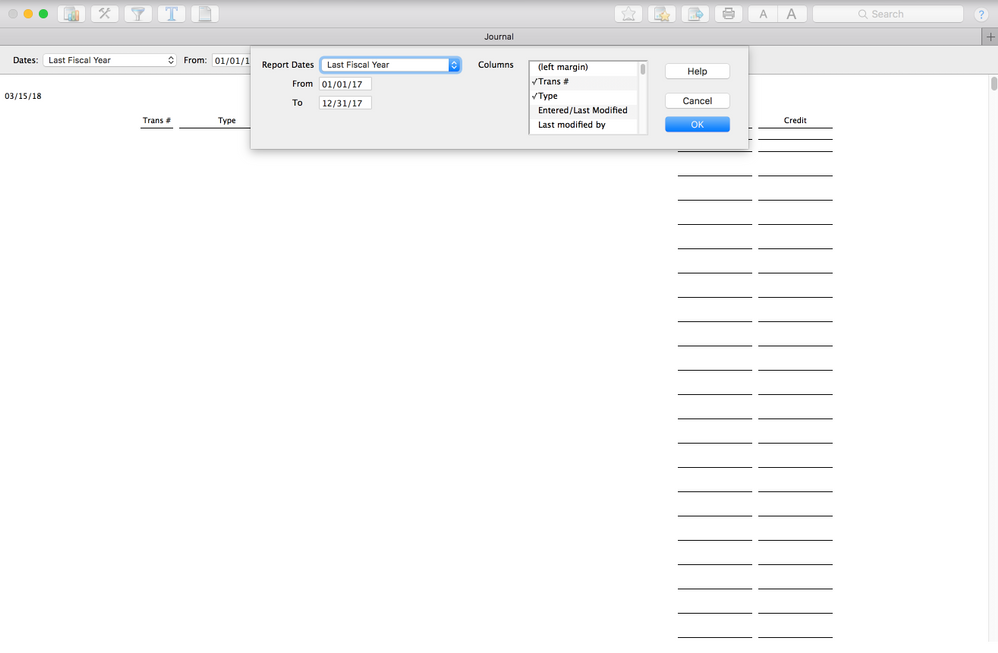
When I select REPORTS and go to ACCOUNTANT and select JOURNAL all 
I get is a date range and then what columns to view.  
I do not get an option for specific accounts or the general journal only.  
All I want to do is print the adjustment entries that 
I made but it seems to not be possible.  
I get all kinds of option to select what columns/items gets printed, 
but not the report I want to print.

When viewing the actual General Journal Entry window all 
I can do is print one individual entry at a time, 
which is useless in my opinion, but I can't print the entire 
journal with all transactions.

This should be a simple, straight forward process.  
Is it even possible? Print All General Journal Entries by Year in QuickBooks 2020

Print All General Journal Entries by Year
Hello there,
We're here to help you with printing the report you need.

If you'd like to print the adjustment entries for specific accounts, you can pull up the Adjusting Journal Entries Report. The good thing about this is you can customize the report to show the accounts you want to print.

Here's how to generate the report:
  1. Click Reports at the top.
  2. Select Accountant & Taxes, then select Adjusting Journal Entries Report.
  3. Click the Customize Report button in the upper right-hand corner.
  4. Select the Filters tab.
  5. In the search filters box, select Account.
  6. In the Account drop down, select the account you'd like to print.
  7. Click OK.
After pulling up the data, you can now print the report.

Here's how:
  1. Click the Print button at the top.
  2. Select Report.
  3. In the Print Reports window, review the settings.
  4. Click Print.
Please keep me posted if you need anything else. Thank you for dropping by and have a good day.

Solved | How to Fix QuickBooks Error H505 in 2020

What is QuickBooks Error H505?

"QuickBooks Error H505 is categorized as – “Problem with Multi-user hosting set up”. The general consequence of this error is when you are trying to access your company file on another computer and that computer lacks certain installation setup. This ends ups with error H505. "
How to Troubleshoot QuickBooks Error H505
NOTE: This error code is among one of a series of errors involving the Hosting setting, including Error Codes - 6000 82, H101, H202, H303 & H505 that occurs due to same reason. When the user tries approaching the company files in multi-user mode or other computer that does not have complete installation set up of QuickBooks software.

Causes for QB Error H505

  1. When you try to access the company file that is placed on another computer, and the QB software fails to reach the server causes the error H202.
  2. QB installed in the system [server name] is set up to allow all the shared connections to the company file, but the QB software is unable communicate causing error H202.
  3. When you are attempting to open your company file placed on another computer, that requires additional installation and setup for successful approach causes errors H101, H303, and H505.
  4. Opening QB Company File failed on Workstation user while QB setup in multi-user mode .

When Intuit QuickBooks Error H505 Encounter

  1. You system may have firewall security software that may block access to computer where the company file is located.
  2. The QB software fails to obtain the Internet Protocol (IP) address of the computer where the company file is located
  3. the .ND file is damaged
  4. The hosting configuration setting is not correct.

Resolutions for the QuickBooks Error H505

1# Create Exception Settings for Firewall
  1. Click Start -> Control Panel.
  2. Click Control Panel -> search Firewall Settings.
  3. Select Firewall Settings -> Allow a Program through Firewall.
  4. Click Add Program -> add QuickBooks 20xx to the exception list.
  5. Then restart your computer to ensure changes are applied correctly.
2# Analyze QuickBooks Hosting Settings
  1. Open QuickBooks application on both the computers configured as multi-user.
  2. Click File -> on Utilities ->Stop Hosting Multi User Configuration
  3. Turn on Hosting by File in one computer -> Utilities -> Host Multi User Configuration.
  4. Restart both the QuickBooks once again.
3# Change Setting of QuickBooks Folder Location
    1. Create new folder on hosting computer -> share it -> set Windows access permissions to share company files.
    Note: If you are unable to access your QuickBooks file server, report to the IT professional.
  1. Copy the .qbw file to the new folder.
  2. Open your Company file in multi-user mode.

H505 Error On Windows Server

Also have to check first the connectivity for this they can use Network Diagnostic Tool from the Intuit QB tool list. But a number of cases notices by the team where WIN Server compatibility causes behind, below we are giving all Windows Server & its compatibility
Lits of Windows ServerCompatibility Check
Windows Server 2019✅ Compatible
Windows Server 2016✅ Compatible
Windows Server 2012 R2✅ Compatible
Windows Server 2012✅ Compatible
Windows Server 2008 R2❗ Less Compatible Soon Expire
Windows Server 2008❗ Less Compatible Soon Expire
Windows Server 2003 R2❌ No Compatible
Windows Server 2003❌ No Compatible
Windows 2000❌ No Compatible
Windows NT 4.0❌ No Compatible
Windows NT 3.51❌ No Compatible
Windows NT 3.5❌ No Compatible

This Company File Is On Another Computer

Case 1 : In a company, QB is both locally & remotely used by the users, user can login remotely together and works, also they can works parallel in the local hosted QB. The problem arises when one user log in QuickBooks remotely and other one want to use it locally error comes and says the QB company file already open in another system and you have to log out first on that location.
Case 2 : QuickBooksDBXX services crash due to some changes into the registry and after scanning the QB system user unable to find any solutions. Whenever a user wants to log on to Hosted QB Server error message displayed "This company file is on another computer, and QuickBooks needs some help connecting."

QuickBooks Multi User Mode Not Working

User Often complains that multiuser mode not working but in some cases user either not installed QuickBooks on a server as Administrator or forget to enable multi-user mode. Also, there are few cases come when user not switched to multi-user mode to work. Intuit gives some guidelines to install QB for multi-user mode. In some case due to damages in QB company file user can face Error H101, H202, H303, or H505 types of error code.

Technical Help & Support for Intuit Error h505

When you encounter such error scenario you can choose alternatively for resolving the error. QuickBookExperts is a trustworthy QuickBooks Consulting Agency that employs highly experienced professionals who are proficient in handling H505 error along with the series of errors. If you are using any of the QuickBooks versions like QB POS, QuickBooks 2014, 2013, 2012, 2011, 2010, 2009, 2008 and 2007) on Windows 7, Vista, Server 2003, XP, 2000, and NT, you are accorded with feasible support. If you running enterprise verion than you need to Chat Live to the customer care executive for immediate solution of QB Error h505.
Modern businesses of all industry and size are following the trend of employing the smart and affordable QuickBooks accounting software to take their business to next level. The software helps in storing all vital business data in a single 'QBW' file. Due to unfriendly scenarios at times the company files get corrupt or damaged. It may be due to various reasons such as: virus infection, malfunction of hardware, operating system bugs etc. that ends up with losing access to all the precious information stored in the file.
How to fix Error H202 if you use Windows Server 2012 Essentials R2
How to Fix Error H101, H202, H303, and H505 in QuickBooks®

How to Fix QuickBooks Error 6094 ,0 in 2020

Helping you How to Fix QuickBooks Error Code -6094,0. you received is our priority also our work. Let's get this sorted out.
How to Fix QuickBooks Error Code -6094,0
This error usually happens when anti-virus in your computer blocking QuickBooks. To resolve this issue, perform these outlined troubleshooting steps for How to Fix QuickBooks Error Code (-6094,0).

Here's how:

  • Ensure your anti-virus is on the latest update.
  • Restore qbdmgr.exe and qbdmgrN.exe from the virus vault or quarantine.
  • Also Prevent QuickBooks Desktop Directory from being scanned by adding exceptions on your anti-virus software.

To restore "infections" that have been quarantined:
  1. From the Settings menu, select Quarantine.
    b. Select the necessary items to restore, then choose Restore.
    c. Also Choose Yes, then OK.

To set up exception to prevent QuickBooks directory from being scanned:
  1. From PC Tools Internet Security menu, choose Settings.
    b. Select Global Action List, then choose Add to select the files to be excluded from scanning.
    c. Choose OK.
  2. Repair QuickBooks Desktop.

Please refer to this article for the specific steps also recommendation above: Fix Error -6094,0.
Please don't hesitate to leave your comment also if you have additional questions. We're here to help!

Monday, January 27, 2020

How to Fix QuickBooks Error 80070057 in 2020

In this article we are going to discuss about QuickBooks Error Code 80070057, How to occurs or QuickBooks says 80070057 the parameter is incorrect and why it came to your computer. Whenever you get this error, it means that you don’t have sufficient permissions to delete files in a specific folder Or When you try to open a company file, you see one of the following messages: Moreover you call call directly to the customer care executive at +1-(818) 900-9884
QuickBooks Error 80070057 the parameter is incorrect

80070057 the parameter is incorrect.

You do not have sufficient permissions to delete files within the specific QuickBooks folder. To use QuickBooks in an multi-user mode you need to have read/write access and create/delete rights to the folder wherever the Quickbooks company file originally stored.
Possible causes of this error:
  • You are opening Quickbooks company file by double-clicking instead of opening the file from inside QuickBooks Desktop.
  • If you’re trying to open a company file that is stored in a folder on a redirected desktop, and also the computer (such as a laptop) isn’t connected to the network.
  • The third party firewall isn’t setup or modified for QuickBooks.
  • The antivirus used is BitDefender, that blocks uncommon ports once there’s data traffic between computers. QuickBooks Desktop 2018, 2017, and 2016 use the database service running on the host computer. This database service communicates through ports 56728(2018), 56727 (2017),
Perform the subsequent counselled solutions to resolve the error.
In order to use QuickBooks in an multi-user mode, you need to write or read access, and create or delete the rights to the folder where originally the quickbooks company file is stored.
Here is a number of the counselled solutions that you just will perform to resolve the error.
First, you can re-launch your QuickBooks and runs as administrator.
Here’s how:

Run as administrator

Re-launch your QuickBooks Desktop.
  1. Right-click the program icon.
  2. Choose Run as administrator.

Open the company file after the QuickBooks program has already opened

Unlike different program, QuickBooks Desktop is configured to be opened from within the program and NOT by double-clicking the company file.
  1. On your keyboard, press the Windows key, then select All Programs. Note:For Windows 8 and 10, enter in QuickBooks.
  2. Select the QuickBooks version that you are trying to open.
  3. If your company file did not open automatically, select the company file, then choose Open.

Move the Quickbooks Company file folder to local drive

Move your Company File to a folder on the C: drive, (which is that the default), in order that all laptop on the network will have access to the file.

Use the QuickBooks File Doctor

Download and run the QuickBooks File Doctor.

Manually Resolve Error 80070057 the parameter is incorrect

  1. Rename the .nd file.
    1. Open the folder where the company file is saved.
    2. Look for the corresponding .nd file of your company file.Example:MyCompanyFileName.qbw.nd
    3. Right-click the .nd file, then select Rename.
    4. Type in .old at the end of the file name.Example:MyCompanyFileName.qbw.nd.old
  2. Rescan your file using the QuickBooks Database Server Manager.Note: This step is only applicable if you are using the company file over the network. Please perform this step on the Server.
    1. On your keyboard, press the Windows key, then type in QuickBooks Database Server Manager.
    2. Select Add Folder to display Browse Folder window.
    3. Choose the folder where your company file is stored, then OK.
    4. Select Scan.
    5. After the scan, re-open the company file.

Configure your Firewall Software

  1. See Firewall and Internet security for updates and network access to view the exceptions needed.
  2. Follow the directions from your firewall supplier to tack together your firewall to permit net access to the QuickBooks Desktop files on all computers.
  3. If configuring the firewall doesn’t resolve the problem, please uninstall then reinstall the firewall (if you have got the mandatory installation files).
Note: Intuit doesn’t support firewall and anti-virus software issues. you may need to contact your program’s supplier for help in installing and setting up your program.

Configure BitDefender to permit QuickBooks Desktop Communication

  1. From the BitDefender 10.0 main menu, choose Antivirus.
  2. Select Custom level > Exclude path from scan.
  3. Choose the New item button.
  4. Select the mapped drive or UNC path that is used to browse to the company file.Example: “Q:\”

Friday, January 24, 2020

How to Troubleshoot QuickBooks Error 20102 in 2020

It's nice to have you in the Community today. We're here to provide information about the How to Fix QuickBooks Error Code 20102.
Error code 20102 indicates that the Employer Identification Number (EIN) is connected on a different account and you have already an active Direct Deposit on a duplicate EIN which is associated with another account.  To get this resolved, I'd suggest giving our Customer Care Team a Call to know How to Fix QuickBooks Error Code 20102. They have the proper tools to check on your account and be able to associate your EIN to the appropriate account so you can run your Direct Deposit with no errors.
How to Fix QuickBooks Error 20102

Here's how you can reach them:

  1. In your browser, navigate to https://help.quickbooks.intuit.com/en_US/contact.
  2. Choose QuickBooks Desktop.
  3. Click the issue or topic.
  4. Click on the Green Phone button to see the Support Number.
Also, I have here some articles that you can refer to about Direct Deposit in QuickBooks Desktop.
These resources should guide you on getting past the error that you received and run your Direct Deposit successfully.
You can also check out this video for reference.
[embed]https://youtu.be/79q7OAjSF9A[/embed]
You've got us here if you have any other questions. We'd be happy to address it for you. Have a great day!

Wednesday, January 8, 2020

QuickBooks WorkForce Not Working | Call +1-818-900-9884

#Howto #Quickbooks #QuickBookExperts #Bookkeeping #Tutorials 


 In this video we are going to Learn How to Resolve QuickBooks Unexpected Error. Any issues about Quickbooks Or Bookkeeping? Visit our Website and chat to the Professional. https://bit.ly/2ICs2ja Our Direct Line +1-(818)-900-9884 Share, Support & Subscribe Twitter : https://twitter.com/Quickbookexper1 Facebook : https://www.facebook.com/Quickbookexp... Instagram : https://www.instagram.com/quickbookex... Email : info@quickbookexperts.com LinkedIn : www.linkedin.com/in/quickbook-experts-31b3b8170 Official Website : https://bit.ly/2ICs2ja Or you you want to know more about QuickBooks, Intuit view my paychecks, How to paystubs online, QuickBooks Workforce not same as paychecks Just call +1-818-900-9884 For Support

How to Resolve Error 502 Bad Gateway in QuickBooks Online.


In this article we are going to answer this Question that How to Fix Error code 502 Bad Gateway in QuickBooks Online.


Read Full Article : https://quickbookexperts.com/Blog/2019/12/03/fix-502-bad-gateway-in-quickbooks-online/

Our Direct Line +1-(818)-900-9884

Share, Support & Subscribe
Twitter : https://twitter.com/Quickbookexper1
Facebook : https://www.facebook.com/Quickbookexperts1/
Instagram : https://www.instagram.com/quickbookexperts
Email : info@quickbookexperts.com
Reddit : https://www.reddit.com/user/quickbookexperts
Pinterest : https://in.pinterest.com/qexpert/
LinkedIn : https://www.linkedin.com/in/quickbook-experts-31b3b8170
Blogger : https://quickbookexperts.blogspot.com
Tumblr: https://quickbookexperts.tumblr.com
YouTube : https://www.youtube.com/channel/UCLVG4AxK4TXMLvzFeSC4VYw
Google Maps: https://g.page/quickbooks-expert/review
Official Website : https://bit.ly/2Pfd1c0

504 Gateway Timeout Error | +1-(818) 900-9884

In this article we are going to answer how to fix quickbooks gateway time out error 504 in 2020.

How to Fix the 504 Gateway Timeout Error in 2020

How to Fix the 504 Gateway Timeout Error

  1. Retry the web page by clicking the refresh/reload button, pressing F5, or Call +1-(818) 900-9884. (For Further Help)
    1. Even though the 504 Gateway Timeout error is reporting an error outside of your control, the error might only be temporary. Simply retrying the page is a quick and easy thing to try.
  2. Restart all of your network devices. Temporary problems with your modem, router, switches, or other networking hardware could be causing the 504 Gateway Timeout issue you're seeing. Just restarting these devices could help.
    1. Tip: While the order you turn off these devices isn't important, the order that you turn them back on is. In general, you want to turn devices on from the outside-in. If you're not sure what that means, check out the link at the beginning of this step for a complete tutorial.
  3. Check the proxy server settings in your browser or application and make sure they're correct. Incorrect proxy settings can cause 504 errors.
    1. Tip: See Proxy.org for an updated, respected list of proxy servers that you can choose from. There are also several websites that offer free proxy server list downloads.
    2. Note: Most computers do not have proxy settings at all, so if yours are empty, don't worry, just skip this step.
  1. Change your DNS servers. It's possible that the 504 Gateway Timeout error you're seeing is caused by an issue with the DNS servers you happen to be using.
    1. Note: Unless you've previously changed them, the DNS servers you have configured right now are probably the ones automatically assigned by your ISP. Fortunately, a number of other DNS servers are available for your use that you can choose from. See our Free & Public DNS Servers list for your options.
    2. Tip: If not all your network devices are getting an HTTP 504 error but they're all on the same network, changing your DNS servers probably isn't going to work. If this sounds like your situation, move on to the next idea.
  2. If nothing has worked up to this point, contacting the website is probably the next best thing to do. There's a good chance the website administrators are already working to fix the root cause of the 504 Gateway Timeout error, assuming they're aware of it, but there's nothing wrong touching base with them.
    1. See our Website Contact Information page for help figuring out how to contact popular websites. Most major sites have social networking accounts they use to help support their services and some even have telephone numbers and email addresses.
    2. Tip: If it's starting to look like the website might be giving a 504 error for everyone, searching Twitter for real-time information about the site's outage is often helpful. The best way to do this is to search for #websitedown on Twitter. For example, if Facebook might be down, search #facebookdown.
  1. Contact your Internet Service Provider. It's very likely at this point, after following all the troubleshooting above, that the 504 Gateway Timeout that you're seeing is a problem caused by a network issue that your ISP is responsible for.

    • Check back with the site regularly. No doubt it'll start working again soon.